
Figma basics and typography
Three videos to start learning design
Choose Designbase to understand Figma, Ma dia to manage a practice file, or JohnKOBA to arrange type. Compare the first useful segment and its limits.

Start with Designbase to understand Figma, Ma dia for file management, or JohnKOBA for arranging type in Photoshop. Choose one for what you want to make; these are not a required sequence.
| Creator | What you need | Start here |
|---|---|---|
| Designbase | Understand what Figma can do | Lesson 1-1 · 7:30 |
| Ma dia | Create and manage a practice file | File management · 15:32–20:06 |
| JohnKOBA | Arrange lettering in a poster or thumbnail | Typography tips · 10:05 |
Basis: beginner learning goals and selected explanations, checked October 30, 2026. All three videos are Korean; English captions have not been verified.
Designbase — understand what to make in Figma
If even the tool names are unfamiliar, start with the 7-minute-30-second first lesson. Designbase introduces tools with different purposes, including Figma Design, FigJam and Slides. At two minutes, a slide places eight tools side by side.
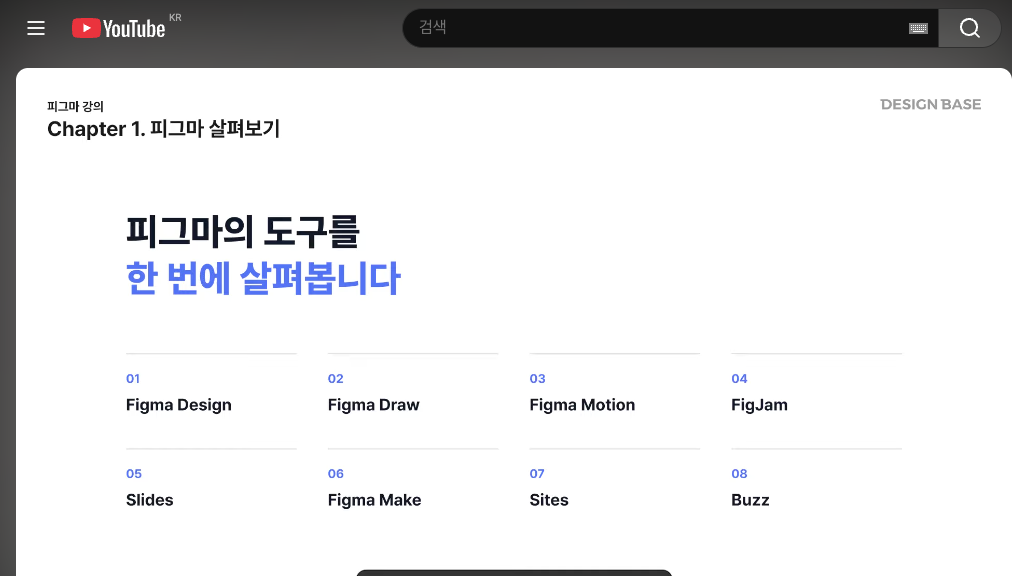

After watching, write one sentence about your intended result: an app screen or an idea board, for example. That makes choosing the next lesson easier. This is an introduction to tools, not a finished-screen exercise. The presenter says subsequent lessons use a paid plan.
 7m 30s totalWatch segment Meet the creatorDesignbaseIf even the tool names are unfamiliar, start with the 7-minute-30-second first lesson.Designbase introduces tools with different purposes, including Figma Design, FigJam and Slides. At two minutes, a slide places eight tools side by side.Read creator guide
Ma dia — learn file management and basic operations
If you can open a file but are unsure how to save and share it, start at 15:32–20:06. Ma dia explains saving versions, distinguishing viewing from editing permissions, and adding pages. At 15:50, a dialog lets you give a version a title and description.
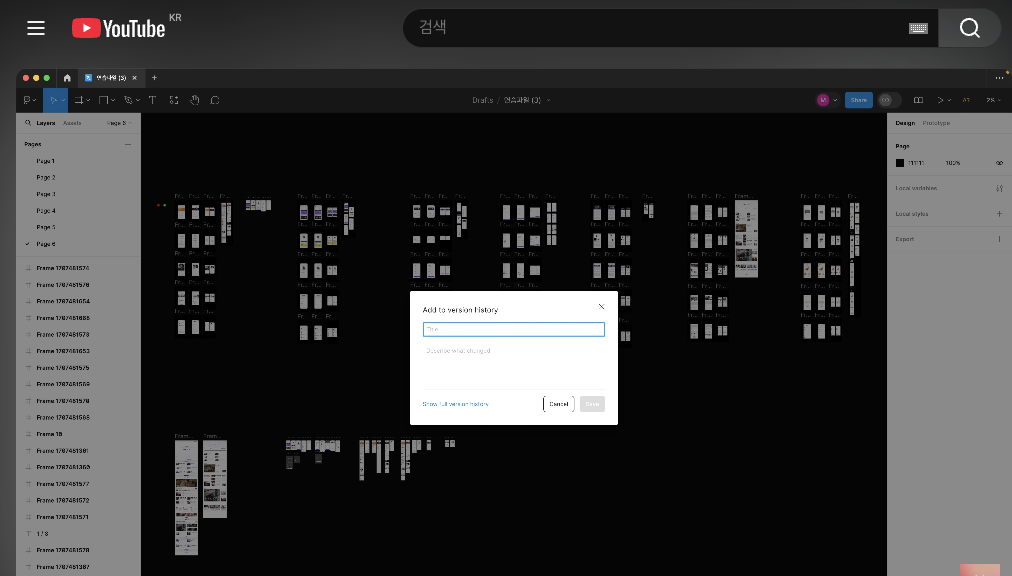

Create a practice file, separate its pages and name a version so you can recognize what changed. The complete course is 2 hours 53 minutes 59 seconds; you need not finish it in one sitting. It dates from 2024, so the interface and plan-specific features may differ now. Source files are advertised as a membership benefit; files from before joining are not included, according to the description.
 15:32–20:06 · 2h 53m 59s totalWatch segment Meet the creatorMa diaIf you can open a file but are unsure how to save and share it, start at 15:32–20:06.Ma dia explains saving versions, distinguishing viewing from editing permissions, and adding pages. At 15:50, a dialog lets you give a version a title and description.Read creator guide
JohnKOBA — practice arranging type on a poster
If placement matters more than learning another tool, watch this 10-minute-5-second typography example. JohnKOBA arranges text at different sizes and angles. At 01:25, the main word is large and drawn lines emphasize the angle of supporting text.
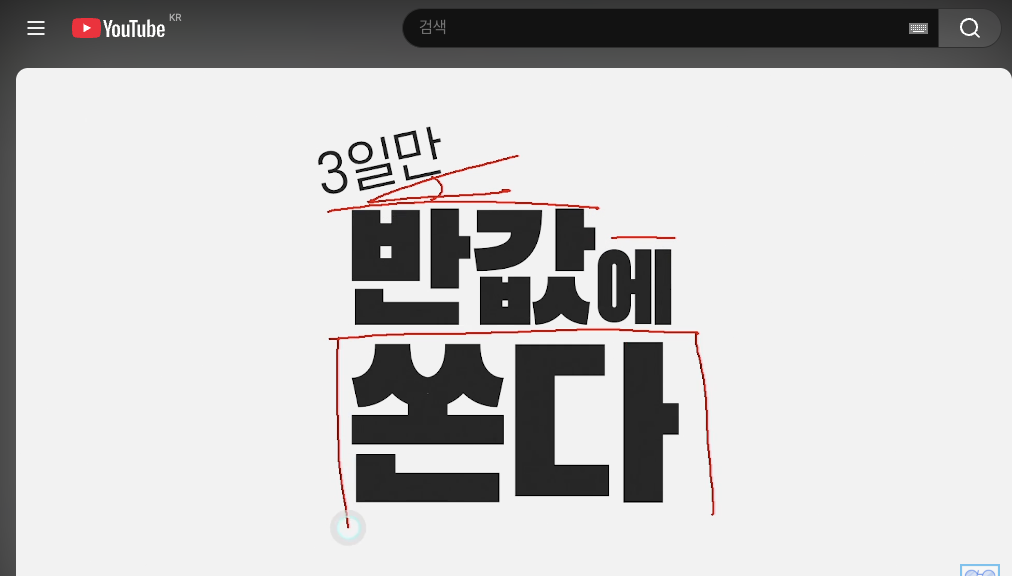

Try two versions of one short sentence: change the sizes in one and the angles in the other. Notice which word you read first. This is a 2019 Photoshop example, not an app or web UX course. Check Photoshop’s access requirements if you want to use the same tool.
 10m 5s totalWatch segment Meet the creatorJohnKOBAIf placement matters more than learning another tool, watch this 10-minute-5-second typography example.JohnKOBA arranges text at different sizes and angles. At 01:25, the main word is large and drawn lines emphasize the angle of supporting text.Read creator guide
After making a screen, read what to fix first in an AI-built interface for the reasoning behind changes to type, spacing and layout.
The original research checked the selected transcripts and scenes. Video access and access to the tools used for practice are separate. Screenshots retain the originals; captions here are in English.